

How Slack integrations work in Solari
- Slack permission exists on a per-user bases in Solari. That means each user has to log into Slack, to give Solari access to their Slack data (channels, chat history etc…)
- Each agent only has access to the Slack data in the channels explicitly granted to it (either by the
team-admin,agent-adminor by members witheditaccess to the agent). - The data in the channels can be accessed by referencing the channel name
See how Slack sources work in Add sources
Connect to Slack
- Navigate to Settings>Integrations
-
Tap
Log into Slack
-
This will launch the Slack permissions screen. Click
Allowto give Solari access to your Slack instanceWe only grab data users explicitly grant access to. No data is pulled unless explicitly triggered by a user with sufficient access. -
If successful, you’ll see the details of your Slack configuration in the
Configure Slackpage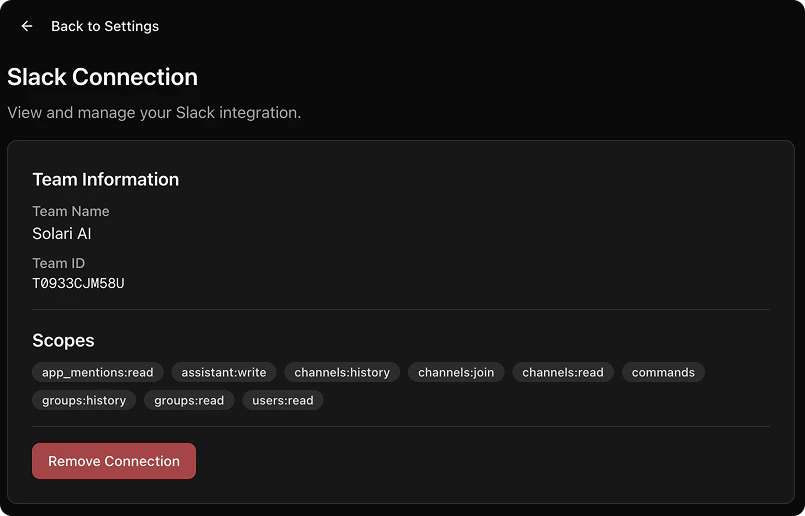
In order to pull data from a specific channel,
Solari Slack Bots needs to be added to the Slack channel. See how to invite Solari Slack bots to your chosen channelRemove Slack connection
- Navigate to Setings>Configure Slack
- Tap
Remove Connectionand confirm in the dialog - If successful, you’ll see an empty
Configure Slackpage