How Jira integrations work in Solari
- Once your team has been connected to a workspace, Solari only has access to the specific tickets (and other Jira objects i.e. boards, users, teams etc…) that users explicitly give it access to.
-
Users give access to pages on a
per agent basis.Solari only has access to the specific tickets (and other Jira objects such as projects, boards, and issues) that users explicitly grant access (either by theteam admin,agent-adminor anyone witheditaccess to the agent).
SeeAgent Permissionsfor more detailsRemember you can control what access members have to each agent, to enforce any role-based data-access permissions. -
Each Solari agent only has access to the Jira data it has been explicitly given access to.
See Add sources to see how agents get access to Ôira tickets as sources.
Connect to Jira (Atlassian)
- Navigate to Settings.
-
If you’re the
team admin, you’ll see “Atlassian Connection” under “Integrations” -
Tap
Log into Jira and Confluence -
You’ll be navigated to log into Atlassian. Use your Jira/Confluence credentials to log in and grant Solari access
Solari only READS access from Jira. No Solari agents will write to Jira.
-
Once successful, you’ll be navigated to the Configure Atlassian page. Here you can
removeyour account or select a different workspace
Choose your workspace
-
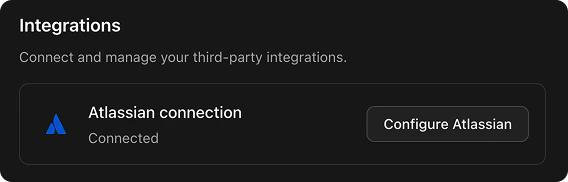
Navigate to Settings>Integrations. Click “Configure Atlassian”
-
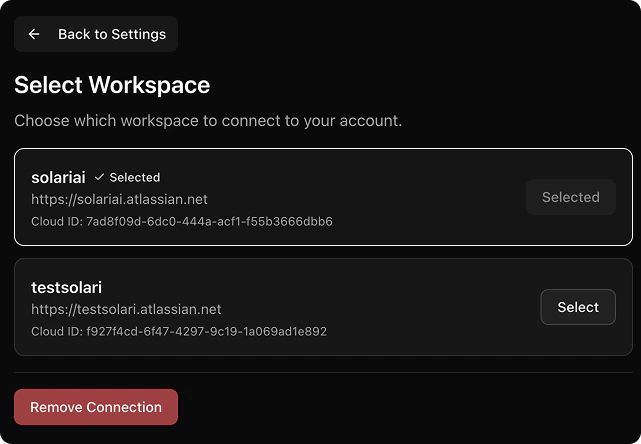
You’ll see a list of available workspaces. Select the one you’d like to give Solari access to.
Remove your connection
-
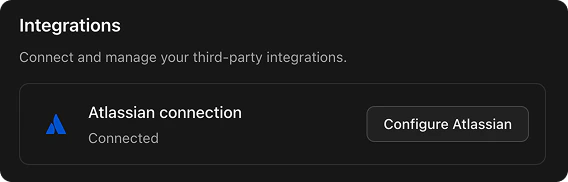
Navigate to Settings>Integrations. Click “Configure Atlassian”
-
Click
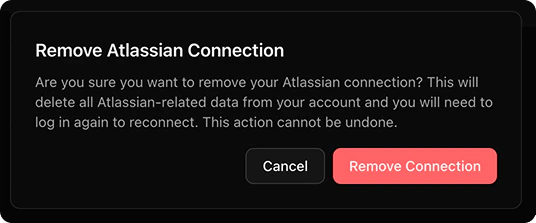
Remove connection -
Confirm
Remove connectionin the confirmation dialog