

Add sources
Sources are what each agent uses to answer your users questions.-
Open the agent by clicking on it from the
Agentslist (navigating either via the left-nav orcmd+kshortcut) -
Toggle
Edit modeon the top let corner - In the Add New Sources menu, select the channel you’d like to add the source from.
- Once prompted, add the source (see
- Choose the source type you want (e.g., docs, PDFs, Slack, Confluence, website).
- Connect or upload the source
-
When prompted add a
nicknameand asource descriptionnicknameis how your agent will refer to this source. You can trigger the agent to use a specific source by using the nickname in your query (i.e. @meeting_notes - what was the first due date?source descriptionis one of the fields our model-router chooses which source to use for a query, if anicknameis not provided.
A goodsource descriptionensures our model-router accurately chooses this source for the queries pertaining to it.
Slack Channels
-
Make sure you’re in your chosen agent (via the
Agentspage or thecmd+kshortcut). -
Turn
editmode on -
In
Add New Sources, click theSlacktile
-
You can search for channels by channel name. Select the channels you’d like to give this agent access to
Solari can only see channels that it’s explicitly been invited to. So make sure to invite Solari Slack Bots to the channels you’d like to give it access to
Inviting Solari Slack Bots to Slack channels
Solari can only sync data form channels it's been invited to
Inviting Solari Slack Bots to Slack channels
Solari can only sync data form channels it's been invited to
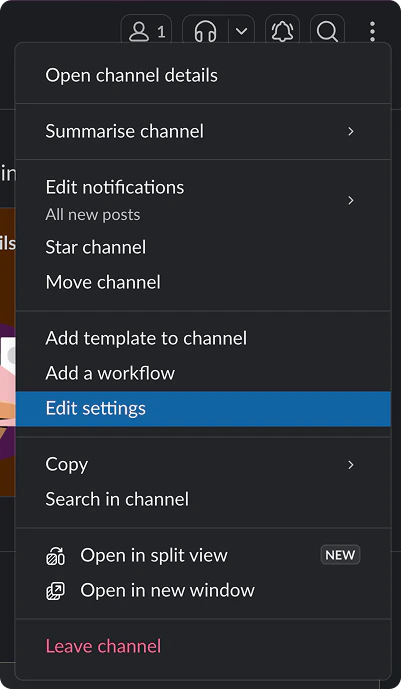
- Open
Edit Settings(opening the menu from⋮in the top right corner of the channel)
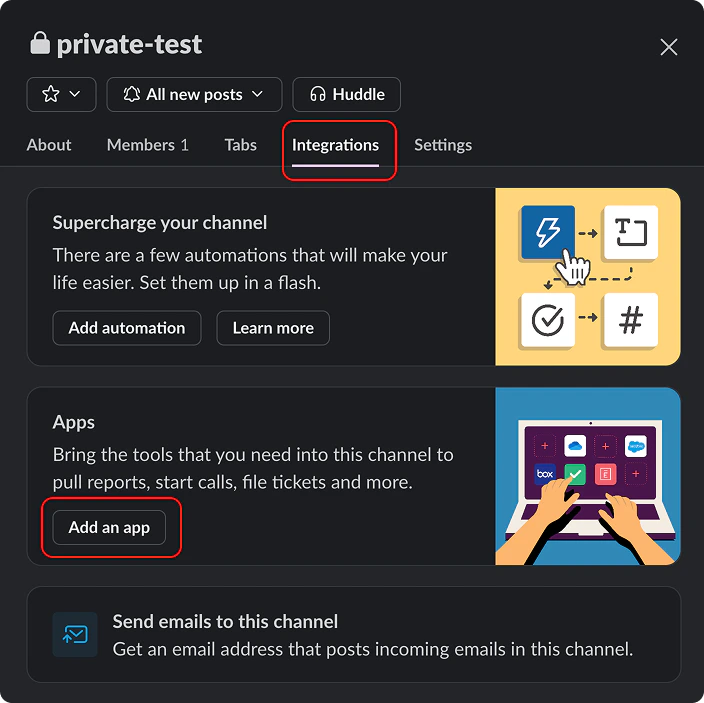
- Navigate toIntegrations> Add Apps
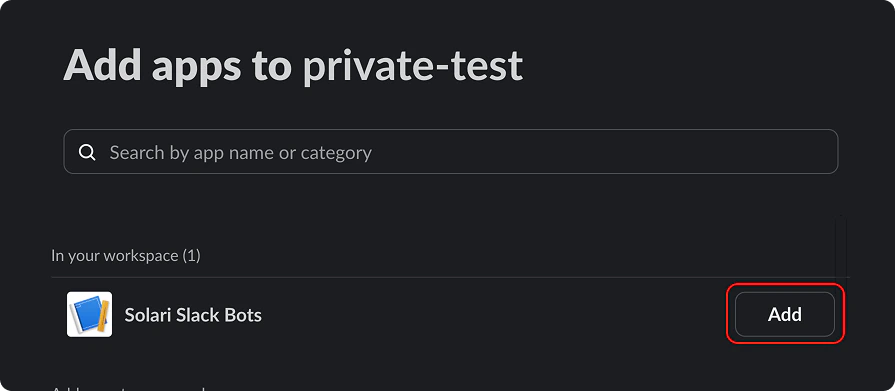
- Find
Solari Slack Botsand clickAdd
-
With the channels you’d like to sync selected, tap
Add selectedto start the sync job -
If successful, you’ll see the channels you’ve added and their sync status in the
Slack Sync Jobwindow in the bottom right hand corner -
As the channels are synced, you’ll see them in the
Current Sourceslist inEdit Agent. Click thesource descriptionof each source. - In the input field, provide some detail about what is in this Slack channel and when the agent should choose this source to answer a given question.
Once your channel has been successfully added, you can reference it in chat using the 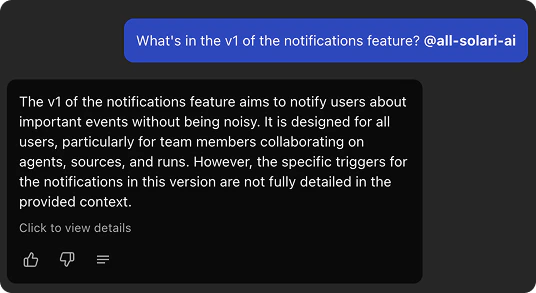
#channel-name as the @nicknameJira tickets
-
Make sure you’re in your chosen agent (via the
Agentspage or thecmd+kshortcut). -
Turn
editmode on -
In
Add New Sources, click theJiratile -
Search for the tickets you’d like included
You can search by passing a JQL expression, or searching with strings you know are in the chosen tickets
JQL expressions can be helpful for adding all tickets in a collection of tickets (i.e. of a particular user, team or project) - Select the tickets you’d like added and tap “Add tickets”
-
You’ll see a new item in your
Sources Listcalledjira. This represents the collection of tickets you’ve given this agent access to -
Click the
source descriptionof each source. - In the input field, provide some detail about what is in this Slack channel and when the agent should choose this source to answer a given question.
Confluence pages
-
Make sure you’re in your chosen agent (via the
Agentspage or thecmd+kshortcut). -
Turn
editmode on -
In
Add New Sources, click theConfluencetile -
You can search for Confluence pages to add in 3 ways:
Search by query
Search with strings or expressions you expect to find in the Confluence page
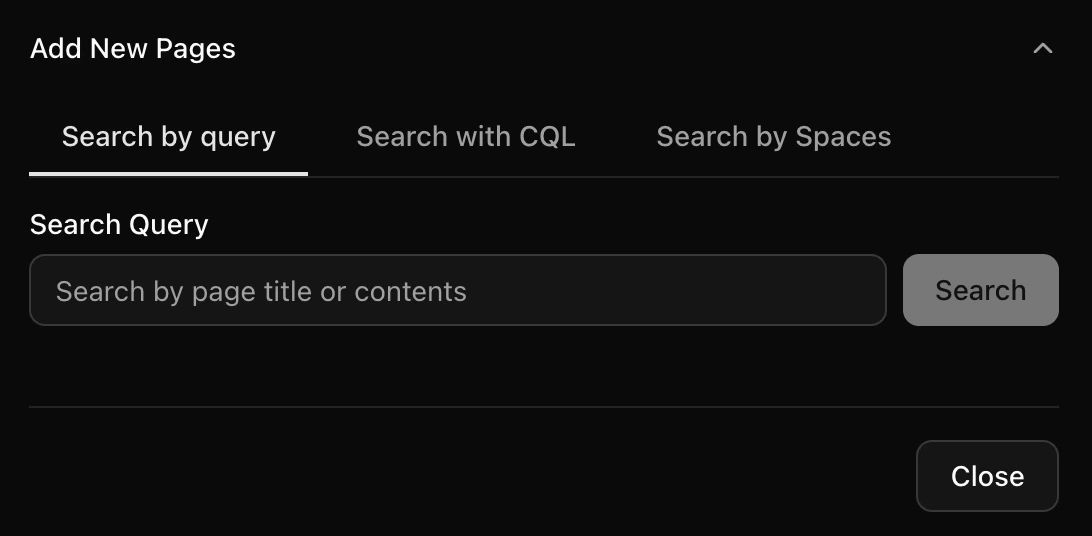
- Enter your query and tap
Search - Select the pages you’d like to add as sources
Search by CQL
Run a CQL expresion and get a list of pages that your expression returns
CQL expressions can be helpful for adding all tickets in a collection of tickets (i.e. of a particular user, team or project)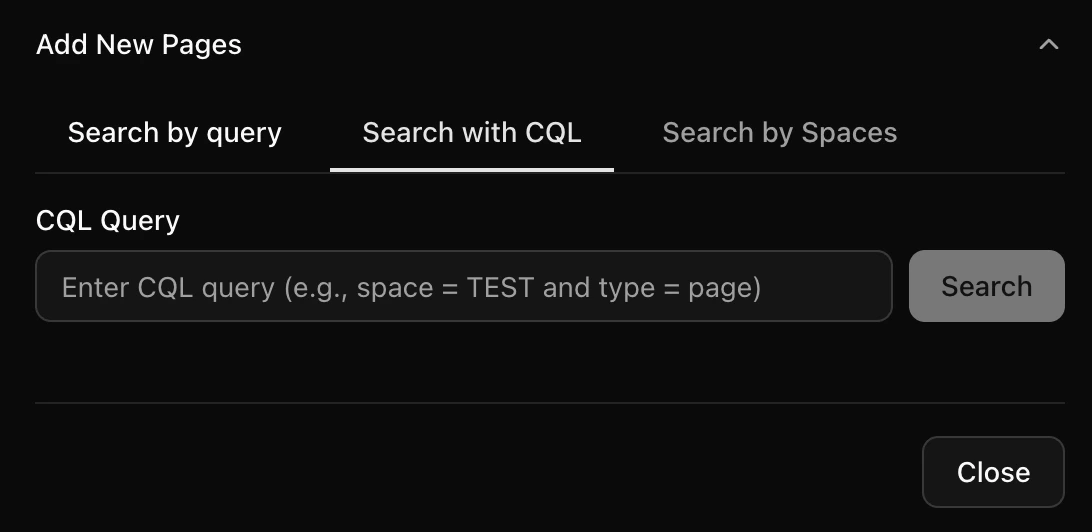
- Enter your CQL expression and tap
Search - Select the pages you’d like to add as sources
Search by Spaces
See all the spaces in your Confluence, and search through pages within each space
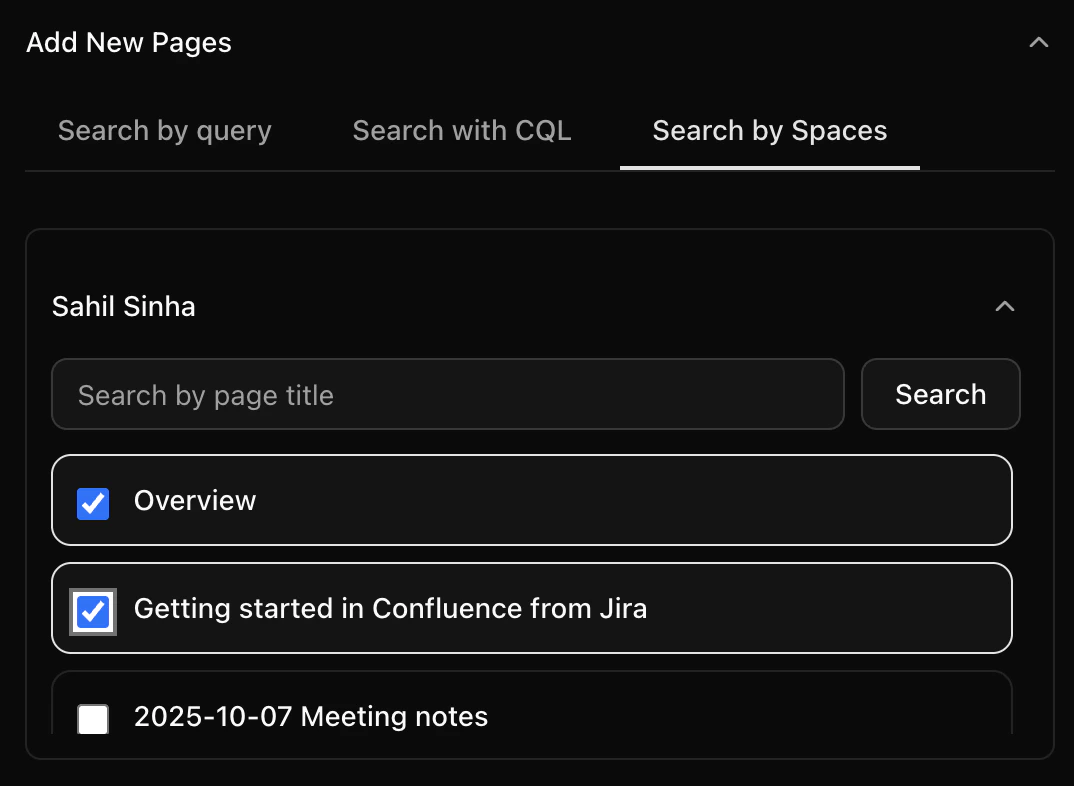
- You’ll see a list of your Confluence spaces. Click one to see the pages in that space
- Select the pages you’d like added as sources
- Enter your query and tap
-
With all the pages you’d like added as sources, tap
Add selected -
You’ll see each page you added in your
Current Sourceslist. Click thesource descriptionof each source. - In the input field, provide some detail about what is in this Slack channel and when the agent should choose this source to answer a given question.
Documents
Valid file types:.pdf, .docx, .doc, .txt, _.md
- Make sure you’re in your chosen agent (via the
Agentspage or thecmd+kshortcut). - Turn
editmode on - In
Add New Sources, click theDocumenttile - Add the chosen document either via drag-and-drop, or using the file picker
- Enter a
source-nicknameandsource-description - Tap
Done
Websites
Valid URL type: any publicly accessible URL- Make sure you’re in your chosen agent (via the
Agentspage or thecmd+kshortcut). - Turn
editmode on - In
Add New Sources, click the Website tile - Paste the website URL
- Enter a source‑nickname
- Tap Done
- You’ll see each page you added in your
Current Sourceslist. Click thesource descriptionof each source. - In the input field, provide some detail about what is in this Slack channel and when the agent should choose this source to answer a given question.
Tables
_Valid file types:.csv, .xlsx, _.tsv
-
Make sure you’re in your chosen agent (via the
Agentspage or thecmd+kshortcut). -
Turn
editmode on -
In
Add New Sources, click the Table tile - Upload the table file (drag‑and‑drop or file picker)
-
Enter a
source-nickname -
When prompted, review column types/metadata. Tap
Saveto confirm each column’s name and datatype.Solari uses this metadata to build accurate SQL queries using your query. Providing accurate metadata helps our text-to-code modles run accurately the first timeFor tables you’ve uploaded that don’t have confirmed metadata, you’ll see an alert next to their name in theSources list. Clicking that alert will trigger the metadata confirmation flow.
Failing to confirm metadata will prevent our text-to-code models from generating accurate SQL for your code specifically.
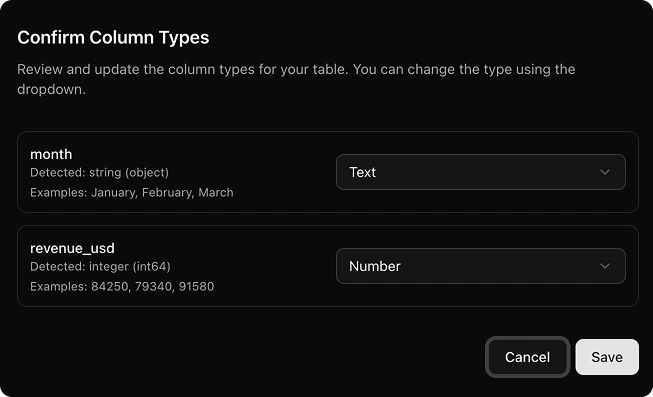
- Tap Done
-
You’ll see each page you added in your
Current Sourceslist. Click thesource descriptionof each source. - In the input field, provide some detail about what is in this Slack channel and when the agent should choose this source to answer a given question.
Delete sources
Sources can always be deleted in 2 ways:- tapping the
trash-canicon inSources list - Right clicking the
source-tilein the ‘Add Source Dialog’, tappingdelete, and confirming in the dialog