> ## Documentation Index
> Fetch the complete documentation index at: https://docs.usesolari.ai/llms.txt
> Use this file to discover all available pages before exploring further.
# Quickstart
> Start building awesome documentation in minutes
## Get started in three steps
### Step 1: Navigate to [app.usesolari.ai](http://app.usesolari.ai)
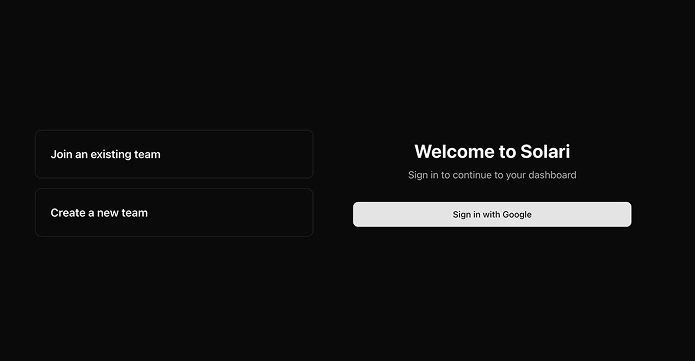 ### Step 2: Determine if you're creating a new team or joining an existing team
Unless you already have a Solari account with a valid team set up, you will **have** to select either `Create a new team` or `Join an existing team` before tapping `Sign in with Google` to make a Soalri account. \
\
If you already have a Solari account with a valid team, you can log in without selecting either option.
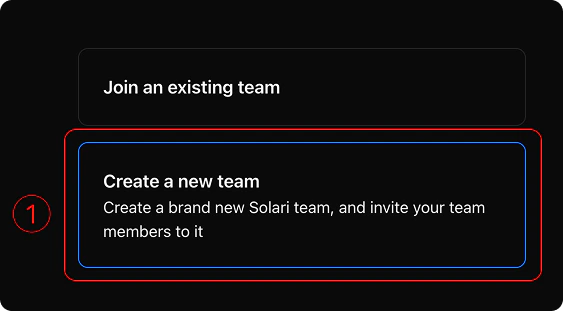
1. Select `Create a new team` on log in
### Step 2: Determine if you're creating a new team or joining an existing team
Unless you already have a Solari account with a valid team set up, you will **have** to select either `Create a new team` or `Join an existing team` before tapping `Sign in with Google` to make a Soalri account. \
\
If you already have a Solari account with a valid team, you can log in without selecting either option.
1. Select `Create a new team` on log in
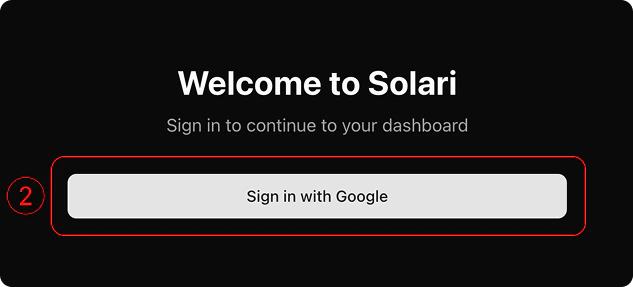
 2. Click `Sign in with Google` to log into your Google account
 3. Follow the onboarding instructions to name your team and start inviting other team members
`Via access code `
Your team admin, or someone else on your team, may have sent you a 6-digit access code you can use to join the Solari team. To join the team via access code -
1. Select `Join an existing team` on log in
3. Follow the onboarding instructions to name your team and start inviting other team members
`Via access code `
Your team admin, or someone else on your team, may have sent you a 6-digit access code you can use to join the Solari team. To join the team via access code -
1. Select `Join an existing team` on log in
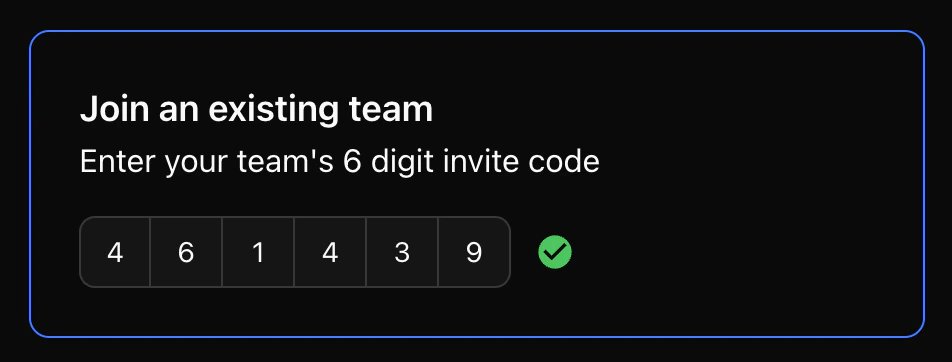
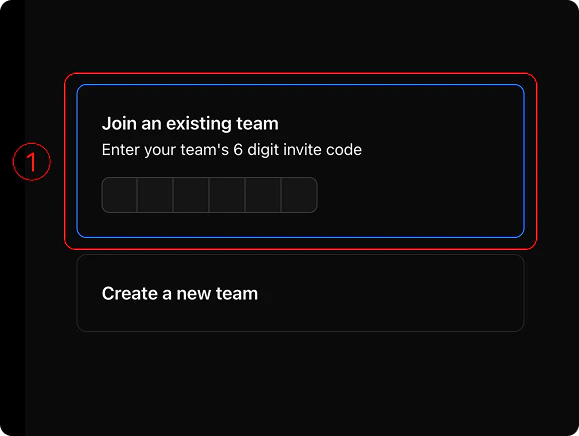 2. Paste your 6-digit access code in the input below and wait for your code to be validated
3. If you see a `red error` icon, we haven't found your access code. Make sure whomever invited you sent it correctly and that you pasted it exactly as you received it. If those look correct and you're still struggling, feel free [to get in touch](mailto:sahil@usesolari.ai?subject=Trouble%20with%20access%20code) or [grab some time](https://cal.com/sahil-sinha-hugr4z/30min).
4. If you see a `green check`, that means we've verified your access code is valid
2. Paste your 6-digit access code in the input below and wait for your code to be validated
3. If you see a `red error` icon, we haven't found your access code. Make sure whomever invited you sent it correctly and that you pasted it exactly as you received it. If those look correct and you're still struggling, feel free [to get in touch](mailto:sahil@usesolari.ai?subject=Trouble%20with%20access%20code) or [grab some time](https://cal.com/sahil-sinha-hugr4z/30min).
4. If you see a `green check`, that means we've verified your access code is valid
 5. Tap `Sign in with Google` to create your account within that Solari team.
`Via email`
1. Check your inbox for an email from `Team Robots @ Solari` ([postmaster@robots.usesolari.ai](mailto:postmaster@robots.usesolari.ai)). You'll find an email inviting you to the Solari team
2. Join the team by either clicking the invite link (your invite code will come pre-filled) or paste the 6-digit access code into the log in page yourself
3. Ensuring your 6-digit access code has been entered and verified in the `Join existing team` window, tap `Sign in with Google` to create your account within that team
### Step 3: Start building your agents!
Now that you're in Solari, build your agents, invite other team members, or connect Solari to your external platforms.
Invite your team to Solari, share agents with them, and manage their permissions.
Build your first agent, give it the sources it needs to be useful, and learn how to manage your
See how to manage your Solari team. Control which agents live in your team, who has access to what, and your integrations to external platforms
Securely connect to your tools to give your agents the access they need. Learn how to manage or disconnect integrations at any time
We’re always adding to Solari to make it the best tool for non-technical teams to use agents. Check out what we’ve got coming up!
5. Tap `Sign in with Google` to create your account within that Solari team.
`Via email`
1. Check your inbox for an email from `Team Robots @ Solari` ([postmaster@robots.usesolari.ai](mailto:postmaster@robots.usesolari.ai)). You'll find an email inviting you to the Solari team
2. Join the team by either clicking the invite link (your invite code will come pre-filled) or paste the 6-digit access code into the log in page yourself
3. Ensuring your 6-digit access code has been entered and verified in the `Join existing team` window, tap `Sign in with Google` to create your account within that team
### Step 3: Start building your agents!
Now that you're in Solari, build your agents, invite other team members, or connect Solari to your external platforms.
Invite your team to Solari, share agents with them, and manage their permissions.
Build your first agent, give it the sources it needs to be useful, and learn how to manage your
See how to manage your Solari team. Control which agents live in your team, who has access to what, and your integrations to external platforms
Securely connect to your tools to give your agents the access they need. Learn how to manage or disconnect integrations at any time
We’re always adding to Solari to make it the best tool for non-technical teams to use agents. Check out what we’ve got coming up!