> ## Documentation Index
> Fetch the complete documentation index at: https://docs.usesolari.ai/llms.txt
> Use this file to discover all available pages before exploring further.
# Slack
## How Slack integrations work in Solari
1. Slack permission exists on a per-user bases in Solari. That means each user has to log into Slack, to give Solari access to their Slack data (channels, chat history etc...)
2. Each agent only has access to the Slack data in the channels **explicitly granted to it** (either by the `team-admin`, `agent-admin` or by members with `edit` access to the agent).
3. The data in the channels can be accessed by referencing the channel name\
\
See how Slack sources work in [Add sources](https://docs.usesolari.ai/essentials/add_sources)
## Connect to Slack
1. Navigate to [Settings](https://app.usesolari.ai/settings)>Integrations
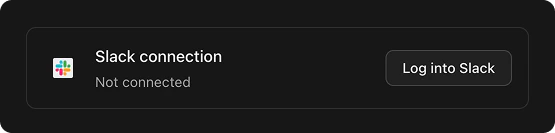
2. Tap `Log into Slack`
 3. This will launch the Slack permissions screen. Click `Allow` to give Solari access to your Slack instance
We **only** grab data users explicitly grant access to. **No data is pulled unless explicitly triggered by a user with sufficient access.**
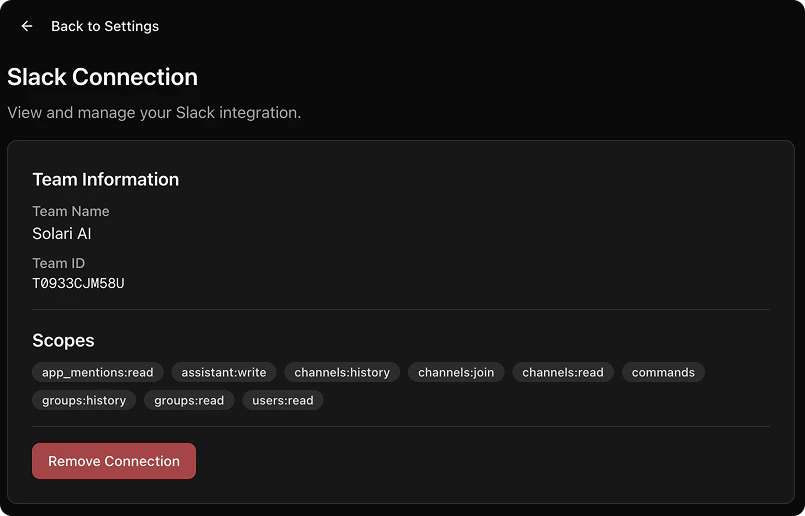
4. If successful, you'll see the details of your Slack configuration in the `Configure Slack` page
3. This will launch the Slack permissions screen. Click `Allow` to give Solari access to your Slack instance
We **only** grab data users explicitly grant access to. **No data is pulled unless explicitly triggered by a user with sufficient access.**
4. If successful, you'll see the details of your Slack configuration in the `Configure Slack` page
 In order to pull data from a specific channel, `Solari Slack Bots` needs to be added to the Slack channel. See how to invite `Solari Slack bots` to your chosen channel
## Remove Slack connection
1. Navigate to [**Setings**](https://app.usesolari.ai/settings)>Configure Slack
2. Tap `Remove Connection` and confirm in the dialog
3. If successful, you'll see an empty `Configure Slack` page
In order to pull data from a specific channel, `Solari Slack Bots` needs to be added to the Slack channel. See how to invite `Solari Slack bots` to your chosen channel
## Remove Slack connection
1. Navigate to [**Setings**](https://app.usesolari.ai/settings)>Configure Slack
2. Tap `Remove Connection` and confirm in the dialog
3. If successful, you'll see an empty `Configure Slack` page